
If you use Adobe software in your business or personal projects, understanding your Adobe license compliance is crucial. You might have received emails or letters about a license review, leaving you wondering what it means and how to handle it.
Ignoring these notices could lead to costly penalties or disruptions in your workflow. You’ll learn what an Adobe License Compliance Review involves, why it matters for you, and how to prepare for it smoothly. Keep reading to protect your software investments and avoid surprises that could impact your work.
License Compliance Basics
Adobe licenses come in different forms. The main types are subscription-based and perpetual licenses. Subscription licenses require regular payments and include access to updates. Perpetual licenses are a one-time purchase without updates. Understanding license types helps with compliance.
Common compliance issues include using more licenses than purchased, expired subscriptions, and unlicensed software installations. These problems can lead to penalties or legal action. Keep track of all licenses to avoid such risks.
Checking if licenses are genuine is important. Genuine licenses show valid serial numbers and come from official Adobe sources. Suspicious emails or software without proof of purchase can indicate fake licenses. Always verify licenses through Adobe’s official channels to stay safe.
Preparing For A License Review
Conducting internal audits helps spot any license issues early. Check all Adobe software installed on company devices. Compare this list with the number of licenses owned. Keep a record of each software version and serial number used.
Tracking software deployments is key. Use tools to monitor where Adobe programs are installed. Watch for any unauthorized or extra installations. This reduces the risk of non-compliance and surprise audits.
Documenting license usage means keeping clear records of who uses what and when. Track license activations, renewals, and expirations carefully. Store this information in an easy-to-access format for quick review. This documentation proves compliance during Adobe license reviews.
Responding To Adobe Audits
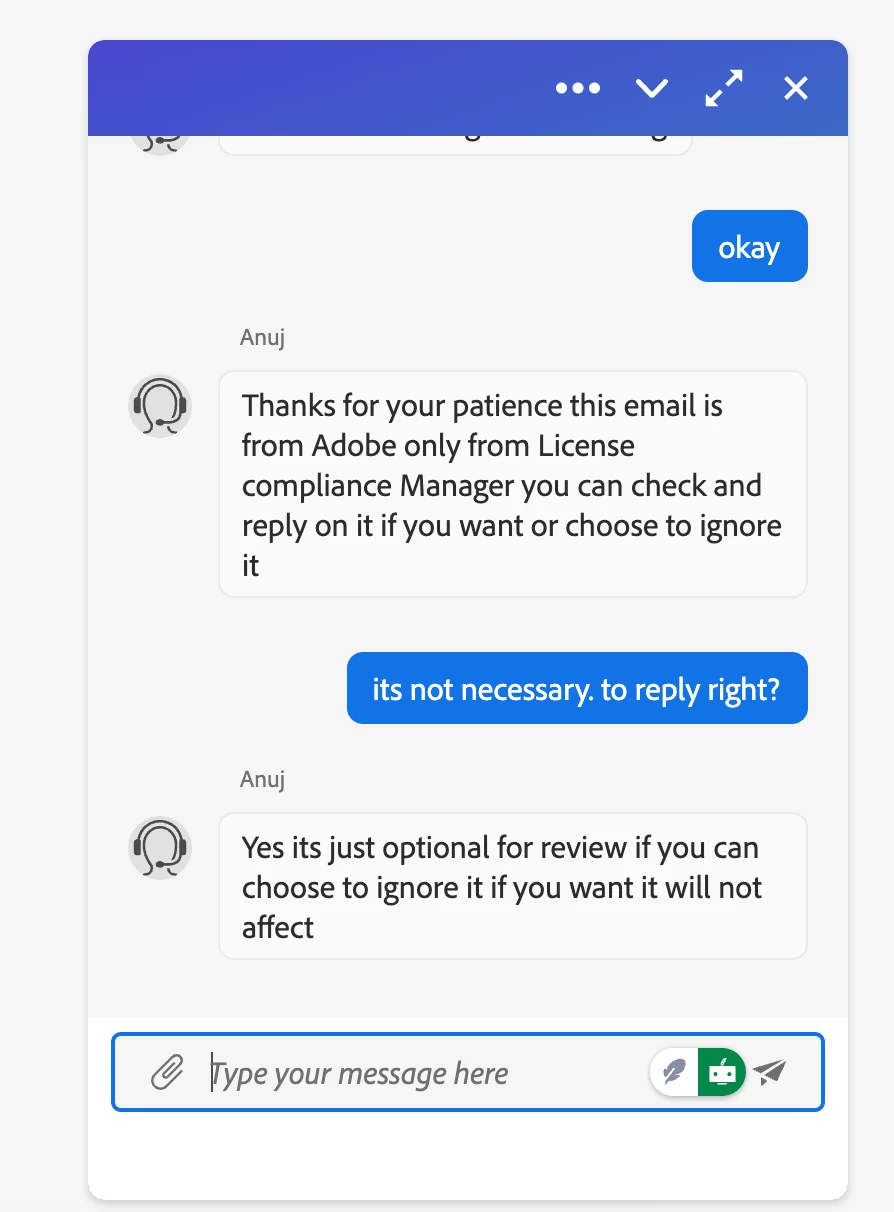
Recognizing official communications is crucial during an Adobe audit. Adobe sends emails or letters from verified addresses only. Always check the sender’s email carefully. If unsure, contact Adobe directly via their official website to confirm.
Verifying audit requests helps avoid scams. Genuine audits come with clear details about the software and usage. Suspicious or vague requests may indicate fraud. Never share sensitive data until verification is complete.
Gathering required evidence means collecting license keys, purchase receipts, and installation records. Organize all documents clearly to show compliance. Keep track of software versions and user counts. A well-prepared file speeds up the audit process and reduces stress.

Managing License Risks
Unauthorized software use can lead to legal issues and fines. Companies must ensure only licensed Adobe software is installed and used. Clear policies help employees understand what is allowed. Regular training supports compliance and reduces accidental misuse. Tools can block unlicensed installations and monitor usage.
Software Asset Management (SAM) helps track software licenses and usage. It keeps records of purchases, deployments, and renewals. SAM reduces risks by ensuring software is used within license limits. It helps plan budgets by showing real software needs. Good SAM also simplifies audit preparation and reporting.
Regular license reconciliation compares installed software with purchased licenses. It reveals gaps where licenses may be missing or unused. This process helps avoid penalties from audits. Reconciliation should be done at least once a year. Timely updates keep compliance strong and costs low.
Handling License Warnings And Alerts
Disabling Genuine Service Alerts can stop annoying pop-ups about Adobe license issues. To do this, open Task Manager, find “Adobe Genuine Service,” and select End Task. This action stops the alert temporarily. For a more permanent fix, disable the service in the Services app by setting it to Manual or Disabled.
Resolving License Warning Messages requires checking if Adobe software is properly activated. Open the app and sign in with your valid Adobe ID. Make sure the license is current and matches the installed software version. If warnings persist, uninstall then reinstall the software using official Adobe sources.
Preventing Future Alerts is easier with good habits. Always keep Adobe software up-to-date and avoid using pirated versions. Set reminders to review licenses regularly. Use Adobe’s official tools to track and manage licenses. This helps avoid unexpected warnings and keeps software compliant.
Legal Considerations
Failing to follow Adobe’s license rules can lead to serious legal problems. Companies might face large fines or even lawsuits for using software without proper permission. These issues can damage a business’s reputation and cause financial loss.
Copyright infringement happens when software is used beyond the license terms. Adobe may take legal action to protect its rights. This can include demands to stop using the software or pay for damages.
Talking to a legal expert helps understand the risks and your rights. They can guide on how to stay compliant with Adobe’s rules. Seeking advice early can avoid costly mistakes and keep your business safe.
Best Practices For Risk-free Use
Keeping software updated ensures you have the latest security fixes and features. Adobe often releases patches that fix bugs and improve performance. Using outdated software may cause license compliance issues and security risks. Set up automatic updates or regular checks to stay current.
Educating employees about proper software use is vital. Teach them to avoid unauthorized downloads or installations. Clear guidance helps prevent accidental misuse of licenses. Regular training sessions or simple reminders can boost compliance.
Using cloud services effectively allows better license management. Adobe Creative Cloud offers tools to track usage and assign licenses properly. Cloud solutions reduce risks of overuse or unlicensed installations. This keeps your organization safe from audits and fines.
Frequently Asked Questions
Why Are People Ditching Adobe?
People ditch Adobe due to high subscription costs, complex licensing audits, cloud dependency, and seeking more affordable, user-friendly alternatives.
How Do I Email Adobe License Review?
Email Adobe license review by contacting licensing@adobe. com. Include your company details and any license information for verification.
Is There A Lawsuit Against Adobe?
There is no widespread lawsuit currently against Adobe. Some users face license compliance audits, but legal actions are case-specific.
How To Remove Adobe License Warning?
To remove the Adobe license warning, ensure your software uses a valid license key. Update or reinstall Adobe Genuine Service. Disable Adobe Genuine Service in Task Manager if necessary, but this may violate terms. Contact Adobe support for license issues to resolve warnings legally and safely.
Conclusion
Staying compliant with Adobe licenses protects your business from risks. Keep accurate records of software use and purchases. Regularly review your licenses to avoid unexpected audits. Clear communication with Adobe helps resolve any concerns quickly. Taking these simple steps saves time and money later.
Compliance ensures your team can work without interruptions. Stay informed and proactive about your Adobe license status.
Read More
- Vendor Software Contract Review: Essential Tips for Risk-Free Deals
- It Procurement Audit Guide: Ultimate Tips for Success
- Software Asset Management Consulting: Maximize Efficiency & Savings
- Software Vulnerability Audit: Essential Tips to Secure Your Code
- Application Security Audit Checklist: Essential Steps for Success
- Devsecops Audit Assessment: Boost Security with Expert Insights
- Open Source License Compliance: Essential Tips for Risk-Free Use
- Microsoft License Compliance Audit: Essential Tips to Stay Compliant
- Enterprise Software Compliance Review: Essential Tips for Success
- Application Portfolio Audit Cost: Uncover Hidden Savings Today